 Dylan Auty
 Simple Physics Toolkit
A set of drop-in MonoBehaviour components for common physics manipulation tasks. Requires no coding — just drag, drop, and configure.
Author: Dylan Anthony Auty
Getting Started
- Import the package into your Unity project
- Attach any component below to a GameObject
- Configure settings in the Inspector
- Play your scene
Sample scenes for every component are in Samples/.
Components Overview
| Component | Description | 3D | 2D |
|---|---|---|---|
| Magnet | Attract/repel Rigidbodies within a radius | ✓ | ✓ |
| Explosive | Apply explosive impulse force to nearby objects | ✓ | ✓ |
| Buoyancy | Mesh-based fluid simulation with waves/forces | ✓ | — |
| Wind | Push objects in a direction within a zone | ✓ | ✓ |
| ZeroGravity | Disable gravity inside a trigger zone | ✓ | — |
| BouncePlate | Apply upward impulse force on contact | ✓ | — |
| ProjectileSpawn | Spawn and fire projectiles at intervals | ✓ | — |
| ThrustEngine | Apply thrust force with optional hover mode | ✓ | — |
| Rope | Create a chain of CharacterJoints between two points | ✓ | — |
| ParticleInfluencer | Attract/repel Particle Systems via force fields | ✓ | — |
| DestroyObjects / Killzone2D | Destroy objects that enter a trigger zone | ✓ | ✓ |
| InteractableItem | Marker/tag filter component | ✓ | ✓ |
Utility Components
| Component | Description |
|---|---|
| ConstantForceZone | Directional, radial, or vortex force applied inside a trigger zone |
| PhysicsMaterialApplier | Auto-apply physics materials and drag values on zone enter/exit |
| DragZone | Apply linear/angular drag inside a zone with optional velocity cap |
| JointConnector | Create configurable joints between two objects |
Interaction System
| Component | Description |
|---|---|
| Interactable | Marks objects as pickuppable; configures hold and throw settings |
| InteractionController | Player-side controller for pickup, drop, throw via mouse/keyboard |
Debug & Presets
| Component / Asset | Description |
|---|---|
| PhysicsDebugger | Editor-only overlay showing active physics zones and force ranges |
| PhysicsPreset | ScriptableObject asset that stores component settings for reuse |
Component Details
Magnet (3D) / Magnet2D (2D)
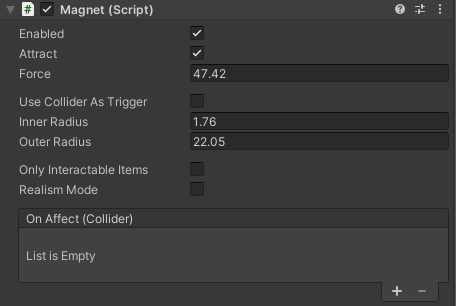
Attracts or repels Rigidbodies within a spherical radius.
Key Settings:
magnetForce— Strength of the forceattract— Attract or repel modeinnerRadius/outerRadius— Dead zone and max rangeuseColliderAsTrigger— Use a custom collider shape instead of sphererealismMode— Distance-based force falloff (Newtonian)onlyAffectInteractableItems— Only affect objects with InteractableItemonAffect— UnityEvent invoked when force is applied
2D Notes: Uses OverlapCircleAll with Rigidbody2D. No useColliderAsTrigger mode.
Explosive (3D) / Explosive2D (2D)
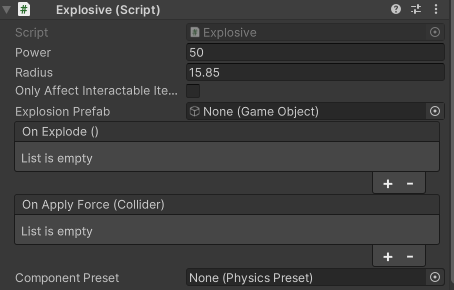
Destroys itself and applies explosive impulse force to nearby Rigidbodies.
Key Settings:
power— Explosion force magnituderadius— Blast radiusexplosionPrefab— Optional VFX prefab to spawnonExplode/onApplyForce— UnityEventsonlyAffectInteractableItems— Filter mode
Triggers: OnTriggerEnter or OnCollisionEnter when a Rigidbody touches it.
2D Notes: Uses AddForce with direction away from center (2D has no AddExplosionForce).
Buoyancy (3D only)
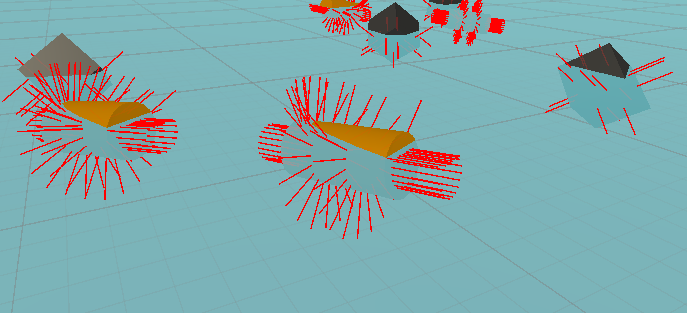
Advanced fluid simulation with mesh-based submerged volume calculation. Replaces the legacy Water.cs.
Key Settings:
fluidDensity— Default 1027 (seawater)visualizeForces— Debug ray visualizationCalculatePressureForces/CalculateSlammingForces— Advanced force modesslammingMultiplier— Impact force scalingonFluidEnter/onFluidExit— UnityEvents
How it works: Adds a BuoyantItem component at runtime to entering objects. BuoyantItem reads the mesh data, calculates submerged volume per triangle, and applies buoyancy, viscous resistance, optional pressure drag, and optional slamming forces.
Requirements: Rigidbody + MeshFilter on entering objects.
Wind (3D) / Wind2D (2D)
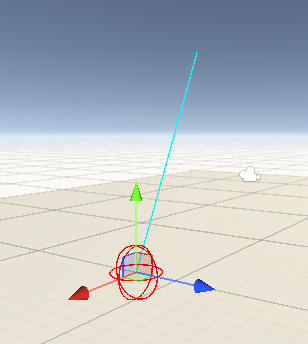
Applies continuous force to Rigidbodies inside its trigger collider.
Key Settings:
lift— Force magnitudedirectionMode— Choose LocalUp, LocalForward, WorldUp, or WorldForwardonlyAffectInteractableItems— FilteronAffect— UnityEvent (3D only)
Direction: Rotate the GameObject to control wind direction. Use directionMode to switch axes.
ZeroGravity (3D only)
Disables/enables gravity for Rigidbodies entering/exiting a trigger zone.
Key Settings:
zeroGravityDrag— Drag applied inside the zone (default 0.5)normalGravityDrag— Drag restored on exit (default 0.0)onlyAffectInteractableItems— Filter
Note: Also handles script enable/disable toggling gracefully.
BouncePlate (3D only)
Applies upward impulse force to Rigidbodies that touch the trigger.
Key Settings:
bounce— Impulse force magnitudeonlyAffectInteractableItems— FilteronBounce— UnityEvent
ProjectileSpawn (3D only)
Periodically spawns and fires projectiles from a random selection.
Key Settings:
emitRate— Time between shotsspeed— Projectile speedinaccuracy— Spread via Random.insideUnitSphereaddRandomInertiaToProjectiles— Occasional torquelimitObjectsInScene/limitAmount— Object limiting / pseudo-poolingobjects— Array of projectile prefabs to choose from
ThrustEngine (3D only)
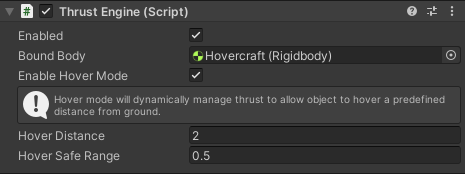
Applies thrust force at position, with optional hover mode.
Key Settings:
maxPower— Maximum thrust forcecurrentPowerPercentage— Throttle (0–1)hoverMode— Switch to hover dynamicshoverDistance— Desired altitudehoverSafeRange— Dead zone above hover distanceboundObject— Target Rigidbody
Rope (3D only)
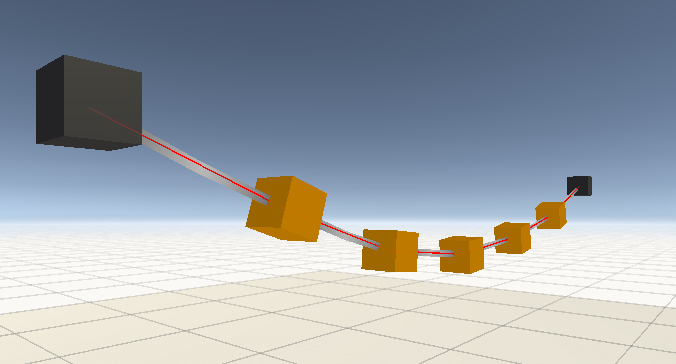
Creates a chain of CharacterJoints between two points for rope physics.
Note: Rope system is in beta. Behaviour may change in future updates.
Key Settings:
connectedBody— Target endpointisAnchor— First segment is kinematic (fixed)resolution— Number of segmentsrenderRope/ropeWidth/ropeColor— Visual settingssimpleRopeCollisions— SphereColliders on mid-segmentsropeSegmentMass— Mass per segmentjointTwistLimit/jointSwingLimit— CharacterJoint angle limitsjointBreakForce/jointBreakTorque— Break thresholds
ParticleInfluencer (3D only)
Attracts or repels Unity Particle Systems using ParticleSystemForceField.
Key Settings:
attract— Attract or repelforceMultiplier— Strengthdrag— Force field dragrange— Force field range
Note: Operates on all ParticleSystems in the scene.
DestroyObjects (3D) / Killzone2D (2D)
Destroys any GameObject that enters its trigger. Useful for scene cleanup.
Key Settings:
onDestroy— UnityEvent before destruction (3D only)
InteractableItem (3D & 2D)
Empty marker/tag component. Used as a filter when onlyAffectInteractableItems is enabled on other components.
Utility Components
ConstantForceZone
Applies constant force to Rigidbodies within a trigger zone.
Force Shapes: Directional (fixed direction), Radial (toward/away from center), Vortex (tangential spin)
Settings: forceDirection, forceMagnitude, forceMode, onAffect event.
PhysicsMaterialApplier
Auto-apply physics materials and drag values when objects enter/exit a zone.
Settings: Separate enter/exit material, drag, and angular drag values. Events on enter/exit.
Set drag values to -1 to leave unchanged.
DragZone
Applies linear/angular drag to objects inside a zone with optional velocity cap.
Settings: drag, angularDrag, maxVelocity (0 = no limit). Events on enter/exit.
JointConnector
Creates configurable joints between two objects at runtime or on demand.
Joint Types: Fixed, Hinge, Spring, Configurable. Automatically adds a Rigidbody if missing.
Interaction System
Interactable
Attach to objects that the player should be able to pick up, hold, and throw.
Settings:
holdMode— Fixed, Spring, or Configurable jointholdDistance— Distance from camera when heldmaxPickupMass— Mass limit for pickupthrowForce/throwUpwardForce— Throw velocityhighlightColor— Visual feedback on hover- Events:
onPickup,onDrop,onThrow
Requirements: Rigidbody.
InteractionController
Attach to the player camera. Handles raycasting, pickup, hold, and throw.
Settings:
- Key bindings:
pickupKey(default Mouse0),throwKey(default Mouse1),dropKey(default G) pickupRange— Max distance for interactionpickupLayers— Layer mask filteringholdPoint— Transform where held objects position
Input Support: Mouse, keyboard, touch (via Input Manager).
Physics Presets
PhysicsPreset ScriptableObjects let you save and reuse component configurations.
To create a preset:
- Right-click in the Project window → Create → Simple Physics Toolkit → Physics Preset
- Name it and configure the float/bool values (field names must match component field names)
- Assign the preset to a component's
componentPresetfield - Click Apply Preset in the inspector to copy values into the component
Physics Debugger
The PhysicsDebugger component shows active physics zones in the Scene view.
Modes: Off, Zones, Forces, All. Cycle with F12 (configurable).
Useful for scene setup and troubleshooting.
Legacy Components
| Component | Replacement | Status |
|---|---|---|
| Water.cs | Buoyancy.cs | Deprecated, remains for backwards compatibility |
| Readme-Overview.txt | This README | Superseded |
| Overview PDF | This README | Superseded |
Legacy documentation is in Documentation/Legacy/.
Support
For issues, feature requests, or questions, please get in touch via the Asset Store page.
Suggestions for improvements and additional features are always welcome!