 Dylan Auty
 Input Modules
Simple Airplane Controller supports multiple input backends. All input modules inherit from AirplaneInput and can be swapped on the same aircraft.
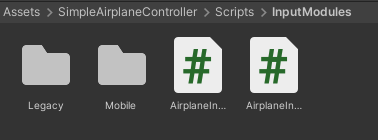
Module Overview
| Module | File | Description |
|---|---|---|
| AirplaneInput | Legacy/AirplaneInput.cs |
Default keyboard input |
| AirplaneInputAxes | Legacy/AirplaneInputAxes.cs |
Unity Input Manager axes |
| AirplaneInputDelegate | Legacy/AirplaneInputDelegate.cs |
Scriptable overrides |
| AirplaneInputSimpleAI | Legacy/AirplaneInputSimpleAI.cs |
AI follow/waypoint |
| AirplaneInputKeyboardDelegate | Legacy/HybridControllers/ |
Keyboard + delegate hybrid |
| AirplaneInputMobile | AirplaneInputMobile.cs |
Mobile touch controls |
| AirplaneInputActions | AirplaneInputActions.cs |
New Input System |
Legacy Modules
AirplaneInput (Keyboard)
The default module. If no input component is found on the aircraft at startup, this one is added automatically.
Inspector Features:
- Real-time input readout (axes values, throttle, flaps, brakes)
- Full key remapping
- Trim settings (step size and key bindings)
- Configurable input sensitivity and throttle step size
- Auto-brake option (engages brakes when throttle is closed)
- Starting throttle position
AirplaneInputAxes (Input Manager)
Reads from Unity's legacy Input Manager axes (Edit > Project Settings > Input Manager).
Use this for joystick/yoke hardware or custom axis bindings. Axes that aren't defined in the Input Manager are silently ignored.
Available Axes:
- Pitch, Roll, Yaw, Throttle (all axes)
- Flaps (axis — positive increments, negative decrements)
- Brake, Camera, Engine Cutoff, Light Toggle, Gear Toggle (button axes)
AirplaneInputDelegate (Scriptable Overrides)
Exposes all input values as public fields and methods. Use this when controlling the aircraft from other scripts, AI, or networked input.
Methods:
SetPitch(float),SetRoll(float),SetYaw(float)SetThrottle(float),SetRawThrottle(float)SetBrake(float),SetFlaps(int)ToggleCamera(),ToggleEngine(),ToggleLights(),ToggleLandingGearAssembly()SetPitchTrim(float),SetRollTrim(float)
AirplaneInputSimpleAI
Basic AI that follows a target or navigates waypoints. Not a full autopilot — it's a demonstration of what the input delegate system enables.
Modes:
- Follow — Chases a target transform
- Route — Follows a list of waypoints in sequence (loops back to start)
AI applies pitch, roll, yaw, and throttle. It avoids ground contact using a downward raycast. Configure overrides for flaps, brakes, and toggles.
AirplaneInputKeyboardDelegate
Combines keyboard input with delegate overrides. Keyboard input and scripted overrides are summed together. Useful for games where a player can fly manually but scripting needs to influence controls (e.g., damage wobble, auto-level).
New Input System (AirplaneInputActions)
Requires the com.unity.inputsystem package (Window > Package Manager).
Setup:
- Install the Input System package and restart Unity
- Add
AirplaneInputActionscomponent to your aircraft - Assign the included
SimplePlaneControls.inputactionsasset - Click Bind Actions From Asset in the inspector
Provided Control Schemes:
- Keyboard — Maps to the same keys as the default
AirplaneInput - Gamepad — Left stick for pitch/roll, right stick X for yaw
Custom Bindings: Each action can be individually overridden in the inspector. Actions auto-detect when the input asset is assigned.
Actions:
- Pitch, Roll, Yaw, Throttle (all Value/Axis)
- Flaps, Brake, CameraSwitch, EngineCutoff, LightToggle, LandingGear (all Button)
- TrimPitch, TrimRoll (Value/Axis)
Mobile Controls (AirplaneInputMobile)
Touch-screen controls for mobile builds.
Setup:
- Add
AirplaneInputMobilecomponent to your aircraft - Check Auto-Generate UI to create joysticks at runtime, or assign pre-built joystick references
- Configure colors and sizing
Auto-Generated Layout:
- Left joystick — Pitch (vertical) and Roll (horizontal)
- Right joystick — Yaw (horizontal)
- Side slider — Throttle (vertical)
- Buttons: Brake, Flaps Up/Down, Camera, Engine Cutoff, Lights, Landing Gear
Custom Assignment:
You can drag pre-configured AirplaneMobileJoystick and AirplaneMobileButton components directly into the slots to design a custom HUD layout.
AirplaneMobileJoystick
Drag-to-steer control with visual handle and fade effect.
| Property | Description |
|---|---|
| Movement Range | Maximum drag distance in pixels |
| Horizontal Axis | Enable horizontal input |
| Vertical Axis | Enable vertical input |
| Clamp To Circle | Circular vs square drag area |
| Handle Rect | The thumb graphic |
| Fade On Idle | CanvasGroup for idle transparency |
| Idle/Active Alpha | Transparency values |
| Fade Speed | Transition speed |
AirplaneMobileButton
Touch button with optional toggle mode.
| Property | Description |
|---|---|
| Is Toggle | Latching toggle behavior |
| Pressed Color | Active color |
| Normal Color | Idle color |
Trim Controls
All input modules support pitch and roll trim. Trim values offset the raw input signal.
Default Keys: T/G (pitch trim up/down), U/I (roll trim left/right), J (reset).
Delegate/API: SetPitchTrim(float) / SetRollTrim(float) on AirplaneInputDelegate and AirplaneInputSimpleAI.
Trim state persists until reset. The inspector displays current trim values in the input readout.