 Dylan Auty
 Simple Airplane Controller
A physics-based aircraft controller for Unity. Provides realistic flight dynamics with an intuitive component-based setup.
Quick Start
-
Drag the Airplane-SingleProp prefab into your scene, or build your own:
- Add an
AirplaneControllercomponent to a GameObject with aRigidbody - Add an
AirplaneAerodynamicscomponent (auto-added) - Add an input module (
AirplaneInputfor keyboard, or one of the alternatives) - Configure engines, wheels, control surfaces, and landing gear in the inspector
- Add an
-
Press Play and fly using the default keyboard controls:
Action Key Pitch Up/Down W / S Roll Left/Right A / D Yaw Left/Right Z / X Throttle Up/Down Shift / Ctrl Flaps Up/Down F / G Brake Space Camera Switch C Landing Gear Q Lights L Engine Cutoff K Pitch Trim Up/Down T / G Roll Trim Left/Right U / I Trim Reset J
Package Contents
Scripts/— All runtime and editor scriptsInputModules/— Input system modulesInputModules/Legacy/— Original input modules (keyboard, axes, delegate, AI)InputModules/Mobile/— Mobile touch joystick/button controllers
Prefabs/— Pre-configured aircraft and camera prefabsModels/— 3D aircraft modelsDocumentation/— This documentation
Requirements
- Unity 2022.3 LTS or newer
- For New Input System support:
com.unity.inputsystempackage (Window > Package Manager)
Quick Start Example
Airplane physics can be quite intricate to get a grasp on and as such, I highly recommend using the pre-bundled prefab before building your own planes from scratch.
With that said, the system does fully support building your own airplanes! More specifically, the system allows you to add as many, wheels, engines, fuel tanks, and control surfaces (ailerons, rudders, flaps, and elevators) as you would like!
Let’s start by opening the ExampleScene found within the SimpleAirplaneController folder:
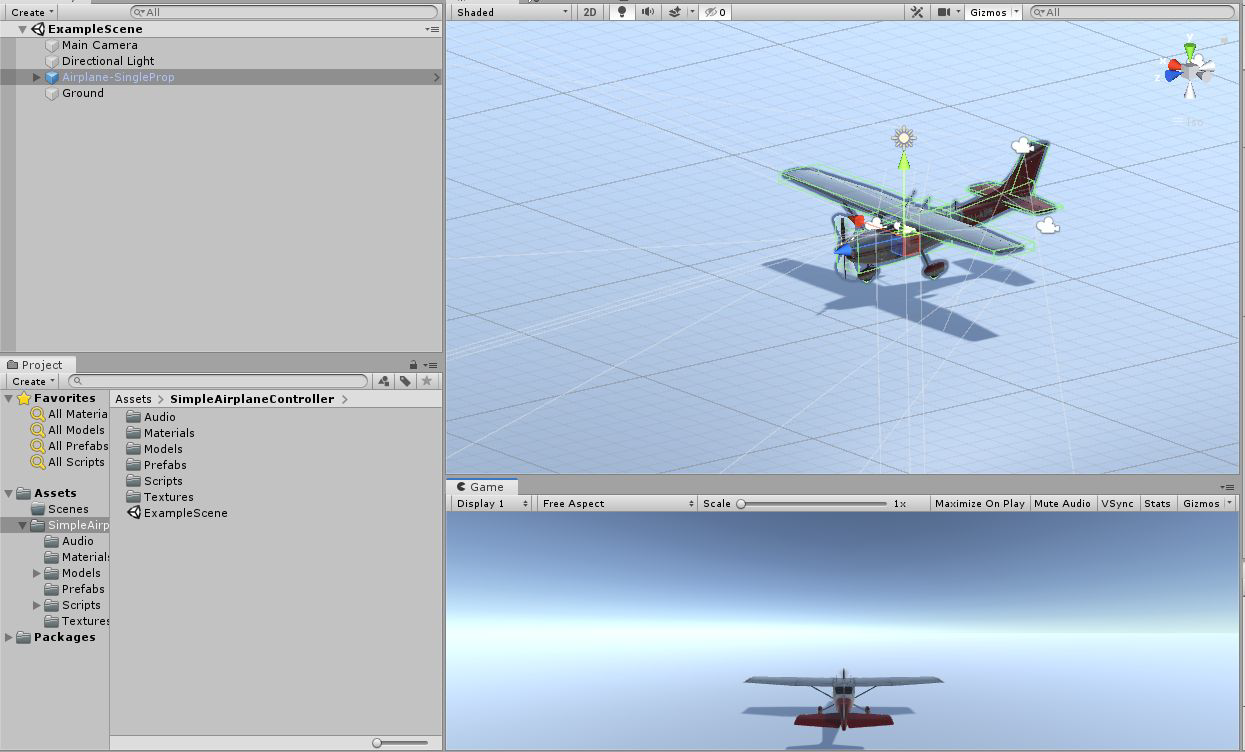
Within this scene, you should see a prefab named Airplane-SingleProp click on it now and we will go through the overall setup of the plane, as well as each script.
Taking a look at the structure of the plane object you should see the following:
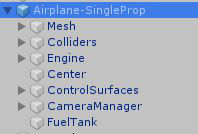
The parent game object holds the primary scripts which control the plane physics system, as well as a rigidbody. There is no need to adjust the rigidbody as this added and managed by the AirplaneController script, however, we will look at this in more detail later.
The Mesh object holds all the graphical mesh objects. For example, you will see the plane body, ailerons, flaps, rudder, elevator, and wheels are all contained within this object.
Colliders hold the box colliders used for collisions, this is setup as a group of colliders to allow you to mimic the overall shape of the plane quite accurately. You can add/remove as needed for your own plane designs. As a side note, you can also make use of a mesh collider instead if preferred. I found the box colliders are a bit easier to manage and manipulate though.
Next, the Engine object is an empty game object which is positioned where the graphical engine is located. It has the AirplaneEngine script attached which allows you to tweak this single engines properties. Once again, we will look into this in more detail later in the Scripts Overview segment.
Center is responsible for overriding the planes Center of Gravity. This can be removed, to allow Unity to generate its own center of gravity. However, you will get much better results by creating your own as planes are generally heavier towards the engine than the reat.
Although this may not be true for a plane carrying cargo. As such this control is great for changing the overall behavior of your code.
Control Surfaces holds various empty game objects using the AirplaneControlSurface script. This script handles animation of graphical items within the Mesh object such as elevator and rudder as an example. The position of these empty objects do not matter as they simply act as controllers.
Our Camera Manager object holds a script responsible for allowing users to switch cameras while in game. This key can be mapped to your preference, which we will look at later. The rigged model includes various cameras by default. These cameras are nested within this manager as it will stick to the plane. However, our main camera is located outside of the plane prefab as it uses a follow script to “chase” the plane as it moves.
The Fuel Tank is an empty game object, with an AirplaneFuelTank script attached. This is entirely optional, and can be removed from your own planes to disable the need for fuel. The position/location does not matter as it does not currently add weight to the plane. We may add that later though!
That concludes the overview of the structure of the plane. Use this structure and prefab as a blueprint to create your own planes if you would like!
Next Steps
- See Setup Guide for detailed setup instructions (Converted from original PDF)
- See Components for detailed component reference
- See InputModules for input system options